


Operator Groups in the Nyverra Portal: The Right Queue for Each Service
 Wedson Lopes
Every efficient service desk has one thing in common: the ticket lands in the hands of the person who knows how to resolve it. This doesn't happen by luck — it happens by routing. The Operator Groups in the Nyverra ITSM Portal are the gears that ensure service reaches the right team.
This guide explains what groups are, how they define queues, and how they connect to transfer, escalation, and default views.
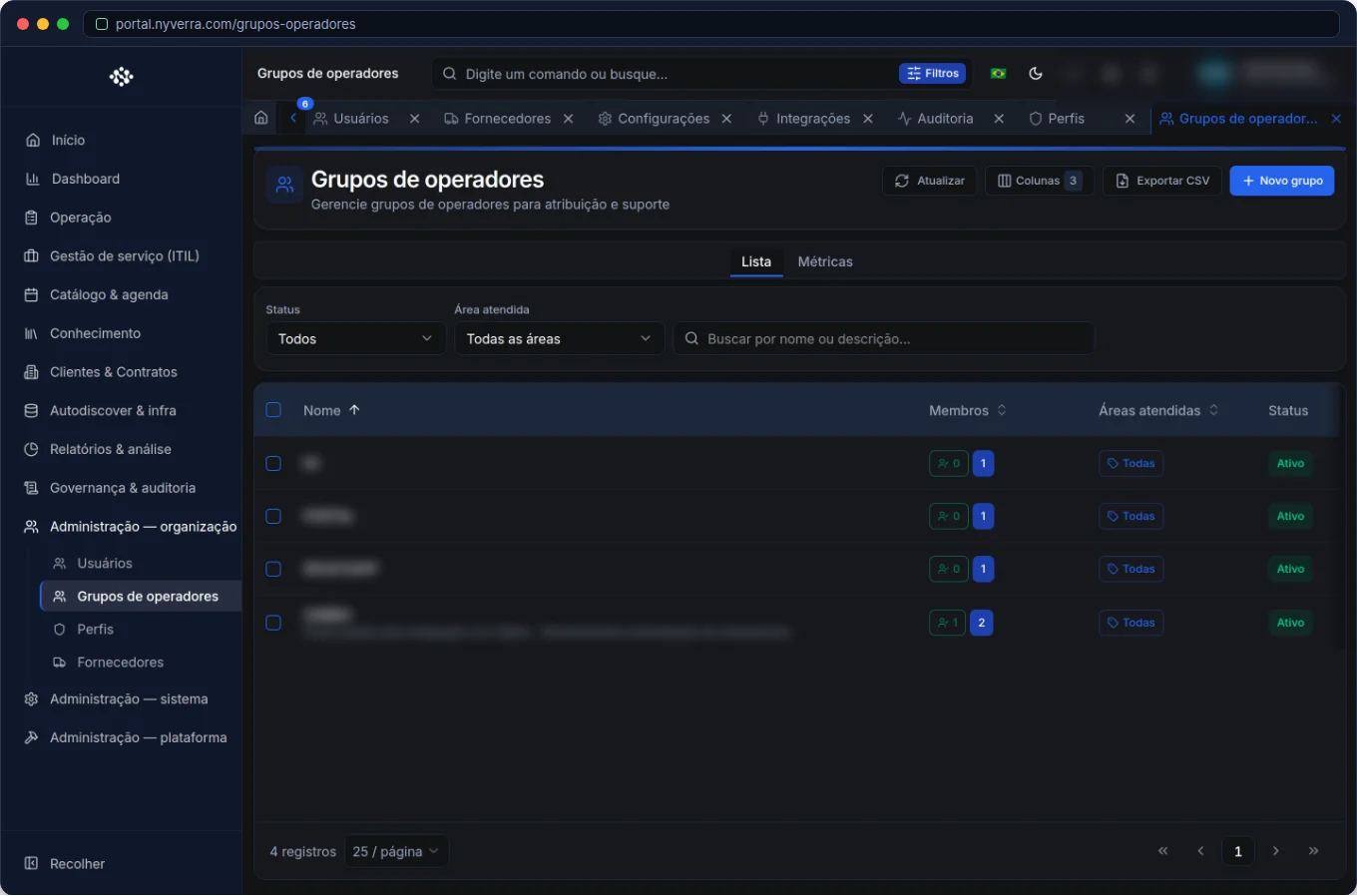 Module interface in the Nyverra ITSM Portal.
What is an operator group
It is a set of technicians grouped by specialty, level, or domain — for example: N1, N2, Networks, Infrastructure, Applications, Telecom. The group acts as a service queue: tickets assigned to it are visible to its members.
This replaces the “every man for himself” logic with an organized operation: the ticket belongs to a team, not to a single person.
Why groups matter
- Routing: the ticket goes to those with the right skills (e.g., “Network” resolves links, “Applications” resolves ERP).
- Escalation: moving from N1 to N2 becomes a group transfer, not an endless phone call.
- Visibility: each technician sees the My Queue of the groups they belong to.
- Management: it's possible to measure workload and performance per queue.
- Transfer: the destination of a ticket transfer is, by nature, a group.
Groups, categories, and routing
Groups become even more valuable when associated with ticket categories. The idea is simple: categories linked to a group enable consistent routing — “Linux Infrastructure” tickets tend to go to the infrastructure group; access requests, to the group that handles access. Combined with Automation, this routing can be automatic.
Who uses it
| Profile | Typical use |
|---|---|
| Administrator | Create groups, add members, and link categories |
| Technician | Serves the queue of the groups they belong to |
| Manager | Monitors workload and distribution per queue |
How to use: step by step
- Create groups by specialty or level (N1, N2, Networks, Applications…).
- Add members (the technicians who serve the queue).
- Link ticket categories to the group, for consistent routing.
- Use as a destination for transfer and escalation (N1 → N2).
- Set the default view for the group (in Settings) so the team opens directly to their queue.
- Monitor the workload per group to balance the work.
Business rules
| Rule | Explanation |
|---|---|
| Queue = group | “My Queue” gathers the tickets from the groups you belong to. |
| Transfer | Requires a destination group; the destination operator is optional. |
| Escalation | Moving up a level naturally involves another group/team. |
| View inheritance | The default view defined per group is inherited by its members. |
Best practices
- Define groups by skill/level, not by person.
- Keep members up to date — an empty group means unowned tickets.
- Categorize consistently for routing to work.
- Balance the load between groups (avoid a bottleneck group).
- Combine with Automation to route automatically by category/urgency.
Common mistakes
| Situation | What to do |
|---|---|
| Ticket without a group | A defined queue is a prerequisite for triage; assign a group. |
| Technician can't see the queue | Check if they belong to the group. |
| Too many groups | Simplify; too many groups cause routing confusion. |
Frequently asked questions
Is a group the same as a role?
No. A role defines permissions; a group defines the service queue.
Can a technician be in multiple groups?
Yes — and they will see the “My Queue” of all of them.
Can I have a group just for escalation?
Yes; level-based groups (N1/N2/N3) are a common pattern.
Automate via API
Groups are exposed via API (/api/grupos-operadores), with a page for selectors (used in transfer). Reference at developer.nyverra.com.
Use cases: queues that make sense
1. Routing by specialty. Network tickets fall into the Network queue; access requests, into the Access queue. The technician opens the screen directly to their specialty — without digging through everything.
2. Escalation between levels. N1 cannot resolve; they transfer to the N2 group, which takes over with the history. Escalation becomes an organized group transfer, not an informal phone call.
3. Load balancing. The manager monitors each group's queue and notices when one is a bottleneck. With this data, they redistribute members or reinforce the shift.
KPIs per group
| Indicator | What it reveals |
|---|---|
| Tickets per group | Workload |
| Average time per queue | Group efficiency |
| Unassigned tickets | Triage failure |
| Transfers between groups | Inaccurate routing |
| Members per group | Queue capacity |
Groups + default view + automation
The group yields more when combined: the default view makes members open directly to the correct queue; automation routes by category/urgency; and the per-group report closes the management cycle. Well-designed groups are the backbone of scalable service — the difference between a team that grows and one that drowns in volume.
Group checklist
- Create groups by specialty/level.
- Add members and keep them updated.
- Link ticket categories.
- Configure the group's default view.
- Use as a destination for transfer/escalation.
- Monitor the load per queue.
Additional frequently asked questions
Is an empty group a problem?
Yes — it becomes unowned tickets; keep at least one active member.
Can I route automatically by group?
Yes, by combining categories with Automation.
How many groups should I have?
Enough to route well; too many groups cause confusion.
Conclusion
With well-defined groups, the Nyverra ITSM Portal directs each demand to the right resolver — faster and with less rework. Clear queues, consistent routing, and visible workload allow service to scale without losing quality.
Leia também: Problem Management in Nyverra Portal: RCA, Problem Groups, and KEDB · Tickets in the Nyverra Portal: Complete Guide to Incidents and Requests.
Keep reading
Read also
 Portal ITSM
Problem Management in Nyverra Portal: RCA, Problem Groups, and KEDB
Instability is not solved by firefighting. The Problems module of Nyverra ITSM Portal investigates the root cause of recurring incidents, documents workarounds, and feeds the Known Error Database (KEDB) — with multidisciplinary groups, RCA, and impact analysis.
7 min de leitura Portal ITSM
Tickets in the Nyverra Portal: Complete Guide to Incidents and Requests
From opening to resolution: understand the complete ticket lifecycle in the Nyverra ITSM Portal — triage, urgency × impact, SLA with automatic pause, internal and public notes, transfer, N1→N2→N3 escalation, approvals, watchers, and bulk actions.
9 min de leitura Portal ITSM
Assets and CMDB in Nyverra Portal: inventory, relationships and impact
You manage what you know. The Assets/CMDB module of Nyverra ITSM Portal maintains the inventory of configuration items, the relationships between them, attachments, checkout/checkin, QR and automatic discovery (Autodiscover) — to link each incident to what really matters.
6 min de leitura
Comments
No comments yet
Be the first to share your thoughts on this article.
Leave a comment