


Tickets in the Nyverra Portal: Complete Guide to Incidents and Requests
 Wedson Lopes
Almost every service desk problem starts at the same point: the ticket. It is through it that the demand enters, it is on it that the SLA clock starts ticking, and it is on it that the operation must prove, at the end, what was done. A poorly registered ticket generates rework, breached SLA, and an unsatisfied customer; a well-handled ticket is the difference between “firefighting” and operating with method.
This guide walks through the Tickets module of the Nyverra ITSM Portal end to end: what a ticket is (and what it isn't), how triage works, priority and SLA calculation, internal and public notes, transfer and escalation, approvals, watchers, and bulk actions. By the end, you will have the complete flow map — from registration to closure.
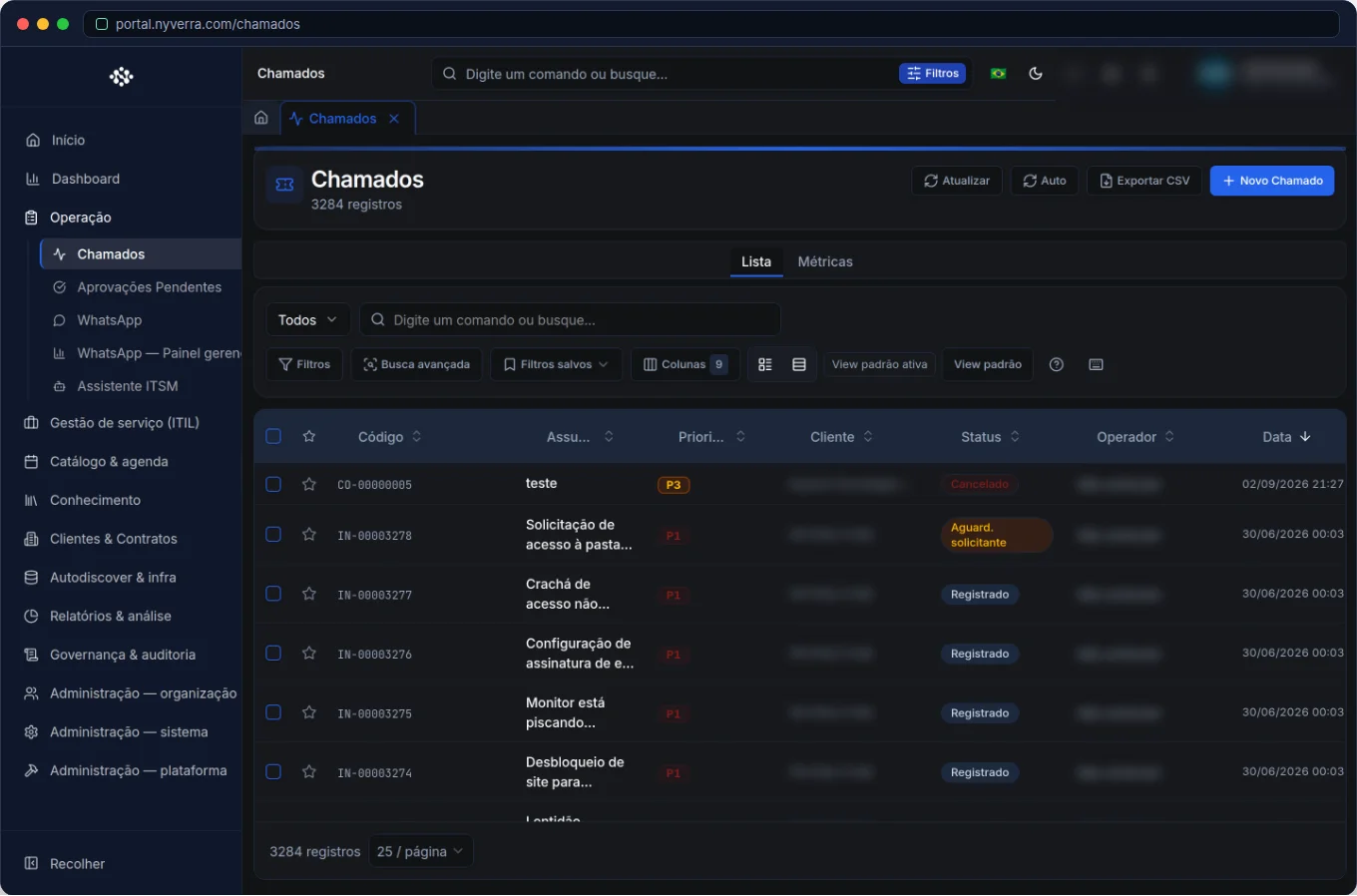 Module interface in the Nyverra ITSM Portal.
What a ticket is — and what it isn't
In the Portal, a ticket is a numbered ticket (prefixes such as IN- for incidents and RS- for requests) that carries requester, customer, classification, assignee, deadline, and the entire interaction history. It is important not to confuse ITIL concepts:
| Concept | Objective | Example |
|---|---|---|
| Incident | Restore a service that stopped or degraded | “The board's email is down” |
| Request | Fulfill a standardized request | “I need access to folder X” |
| Problem | Eliminate the root cause of recurring incidents | “VPN goes down every day at 9 am” |
| Change | Change something in production with control and risk | “Upgrade ERP to version 12” |
The ticket resolves the now. When the demand repeats, it should evolve into a Problem; when it requires planned change, into a Change. The Portal allows chaining this flow within the ticket itself, linking tickets to problems, changes, and child tickets.
Who uses it: profiles and visibility
Visibility is controlled by RBAC (role-based access control). The same ticket is viewed differently depending on the profile:
| Profile | What they see and do |
|---|---|
| Customer | Opens and tracks only tickets within their scope; does not see internal notes. |
| Technician / operator | Lists, captures, transfers, records notes, controls time, and closes, according to permissions (see all, from group, or assigned). |
| Administrator | Configures types, categories, urgencies, impacts, SLA rules, calendar, and the default view per team. |
The lifecycle of a ticket
The Portal works with standard flow statuses — and each transition has consequences for SLA and notifications:
| Status | Meaning | Impact on SLA |
|---|---|---|
| REGISTERED | Just created, still in triage queue. | Clock running since creation. |
| IN_PROGRESS | There is an assignee working on the ticket. | Clock running. |
| PENDING | Waiting for third parties (customer, supplier). | Pauses the SLA automatically. |
| RESOLVED | Solution applied; awaiting confirmation/closure. | Resolution SLA met. |
| CLOSED | Cycle ended. | End of cycle. |
| CANCELLED | Demand not valid or was cancelled. | End of cycle. |
When a ticket enters PENDING (for example, “waiting for customer”), the Portal freezes the SLA clock and resumes it when the status changes back — preventing the team from being penalized for external dependencies. This detail is one of the most impactful on compliance indicators.
Opening and triage
Creating it well is half the service. At opening, the Portal captures:
- Requester: a user from the operation or a contact from the customer.
- Customer and, when applicable, location/branch.
- Classification: ticket type, category/area (e.g., Linux Infrastructure, NOC, Applications) and subcategory.
- Subject and description — the better the symptom is described, the faster the diagnosis.
- Urgency and impact — which combined define the priority.
- Links: asset (CMDB), supplier, related ticket (parent), and relationship type.
- Watchers — who should receive ticket notifications.
- Attachments already at creation and custom fields per category.
The triage is the moment to route: the list organizes tickets by deadline and priority, and the operator directs them to the right group. Consistent classification is what enables reliable reports and automatic category suggestion by AI.
Priority: urgency × impact
Priority is not subjective: it stems from the crossing between urgency (how much it hurts now) and impact (how many people/services are affected). An incident affecting the entire company is maximum priority even if technically simple; an individual request is low impact, no matter how “urgent” it seems to the requester. The standard ITIL prioritization matrix:
| Impact ↓ / Urgency → | High | Medium | Low |
|---|---|---|---|
| High | Critical (P1) | High (P2) | Medium (P3) |
| Medium | High (P2) | Medium (P3) | Low (P4) |
| Low | Medium (P3) | Low (P4) | Low (P4) |
The resulting priority defines which SLA rules apply to the ticket.
SLA: what is measured and when it pauses
The Portal tracks two main milestones: first response and resolution. Deadlines are calculated by type + priority, considering the configured business calendar (business hours and holidays — that's why a ticket opened on Friday night doesn't “expire” on the weekend).
- Automatic pause: in PENDING, the SLA freezes and resumes when leaving the state.
- Expiration alert: the operator sees the remaining time in the detail; the SLA/OLA dashboard shows violations by queue.
- Visibility: technicians and managers track the remaining time; the customer sees the status without internal exposure.
A “strange” SLA almost always has one of these causes: a paused ticket (waiting for customer), a calendar different from expected, or a specific SLA rule for the ticket type. It is worth checking with the administrator before opening an incident about the SLA itself.
The queue and search
Mature tickets live on filters. The Portal list offers quick filters (All, Mine, My queue, Open, Unassigned) and a panel with status, priority, customer, and period. All this is the basis of the default view: that combination of filters that makes the screen open already in the queue each team serves. When the administrator defines the view for a profile, the user cannot remove it on their own — ensuring operational consistency.
Service: capture and record notes
With the ticket in hand, the operator captures the ticket to take responsibility and begins to record notes. Here is a separation that confuses many people — and that the Portal makes explicit:
| Type | Who sees | When to use |
|---|---|---|
| Note (internal) | Only the team | Technical context, hypotheses, diagnostic steps, internal escalation. |
| Response (public) | Requester/customer | Official communication, request for information, resolution notice. |
Choosing the right type avoids the embarrassment of exposing an internal conversation to the customer — and avoids leaving the customer without a response by thinking that the note was enough. Besides notes, the operator can attach files and record worked time (time tracking), when the module is in use.
Assignment, transfer, and escalation
Three distinct operations, with distinct purposes:
- Assign: define an operator responsible for the ticket.
- Transfer: move the ticket to another group (and, optionally, a destination operator), informing the reason — which is recorded in the history. Use Transfer when the demand belongs to another queue; do not use “Edit” just to change queue or assignee.
- Escalate / De-escalate: raise the service level (N1 → N2 → N3) when it requires specialization, and lower it when it returns. The escalation history preserves origin/destination levels, reason, operator, and time spent.
These operations respect permissions: if the transfer button appears disabled, it is usually lack of permission (TICKET_UPDATE_*) or the ticket is already finalized.
Watchers, approvals, and related items
- Watchers (CC): people who follow the ticket and receive notifications, without being responsible — useful for supervisors and stakeholders.
- Approvals: if the ticket type requires approval, the flow does not advance until the approvers decide. The decision is in Pending approvals (with counters/badges).
- Related items: link the ticket to problems (recurrence), changes (planned correction), and child/derived tickets — rebuilding the incident context.
Bulk actions and export
For batch demands, the Portal allows multiple selection and bulk actions: close, assign, and change status of several tickets at once, with a summary of successes and failures per ticket. The export (Excel/PDF, according to permission) supports accountability and queue checking.
Notifications
Relevant events — new note, assignment, approval decision — trigger in-app notifications (bell in the header) and, when configured, via email, chat, and push in the mobile app. Those on the front line notice the change without needing to keep refreshing the screen.
Best practices that change the indicator
- Standardize classification: consistent types, categories, and subcategories enable reports, correct SLAs, and AI suggestion.
- Separate note from response: clear communication with the customer, rich context for the team.
- Don't leave orphan tickets: capture or assign a responsible person still in triage.
- Link the asset (CMDB): tickets linked to the CI allow identifying recurrence by equipment.
- Use the default view: the team opens already in the right queue, reducing triage time.
- Monitor SLA per queue: act before expiration, not after.
Common mistakes (and how to solve them)
| Situation | What to do |
|---|---|
| I can't find the ticket in the list | Review the filters; try “Mine” and “My queue”; confirm customer and status. |
| Transfer button disabled | Confirm permission and that the ticket is not finalized. |
| SLA seems wrong | Check if it is paused (waiting for customer) and confirm calendar/rule with the admin. |
| I need to approve something | Use Pending approvals, not just the ticket detail. |
| Customer “did not receive” the response | Confirm if it was registered as Response (public) and not as Note (internal). |
Frequently asked questions
What is the difference between resolving and closing?
“Resolved” indicates that the solution was applied; “Closed” actually ends the cycle, normally after customer confirmation or an auto-closing deadline.
Does the customer see internal notes?
No. Notes are always internal; Responses are always visible to the requester.
Can I change the type of an already opened ticket?
Depending on permission and policy, yes — but the change may trigger a new SLA or a new approval step. Use with discretion.
How does the Portal avoid unfair SLA?
By pausing the clock when the ticket waits for third parties (status PENDING) and respecting the business calendar.
Automate via API
The Tickets module is exposed via a REST API. The most used resources in integrations:
GET /api/tickets/busca-avancada— listing with filters and pagination.POST /api/tickets— ticket opening.GET /api/tickets/{id}— detail.POST /api/tickets/{id}/tramites— add note.POST /api/tickets/{id}/acoes— capture/start/close/cancel.POST /api/tickets/{id}/transferir,/escalarand/desescalar.POST /api/tickets/bulk-action— bulk actions.
The interactive reference is at developer.nyverra.com.
Conclusion
The Tickets module of the Nyverra ITSM Portal transforms the service desk routine into a controlled and auditable flow: consistent classification, calculated priority, SLA with automatic pause, separate communication between team and customer, traceable transfer and escalation, approvals, and bulk actions. It is the difference between reacting and operating with predictability — and the customer notices.
Keep reading
Read also
 Tutoriais
Reports in the Nyverra Portal: Evidence to Decide and Prove
Indicators that don't lead to action are just numbers. See how the Nyverra ITSM Portal generates executive reports, client and contract extracts, hours per technician, email scheduling, and history — the evidence that management and compliance demand.
5 min de leitura Tutoriais
Operator Groups in the Nyverra Portal: The Right Queue for Each Service
A ticket in the wrong queue is wasted time. See how Operator Groups in the Nyverra ITSM Portal organize technicians by specialty and level, enable transfer and escalation, and define each person's 'My Queue'.
5 min de leitura Tutoriais
Problem Management in Nyverra Portal: RCA, Problem Groups, and KEDB
Instability is not solved by firefighting. The Problems module of Nyverra ITSM Portal investigates the root cause of recurring incidents, documents workarounds, and feeds the Known Error Database (KEDB) — with multidisciplinary groups, RCA, and impact analysis.
7 min de leitura
Comments
No comments yet
Be the first to share your thoughts on this article.
Leave a comment